Elgato HD60 Pro Unboxing & Setup
By Romel Dris·Published ·3 min read·GearTechTutorials
From the video archive
Adapted from my original video, published Mar 26, 2020. Watch original
Here's a quick unboxing and setup of the Elgato Game Capture HD60 Pro. I picked this up so I could finish off my streaming setup, and was able to stream both my PS4 and my Nintendo Switch.
Fun bit of channel history: the very first video I ever uploaded here was the Blackmagic Intensity Pro, also a capture card. I was really keen on figuring how to stream Street Fighter tournaments in Vancouver. And here I am several years later, still trying to make YouTube videos and still trying to stream.
WHY THE PCIe VERSION
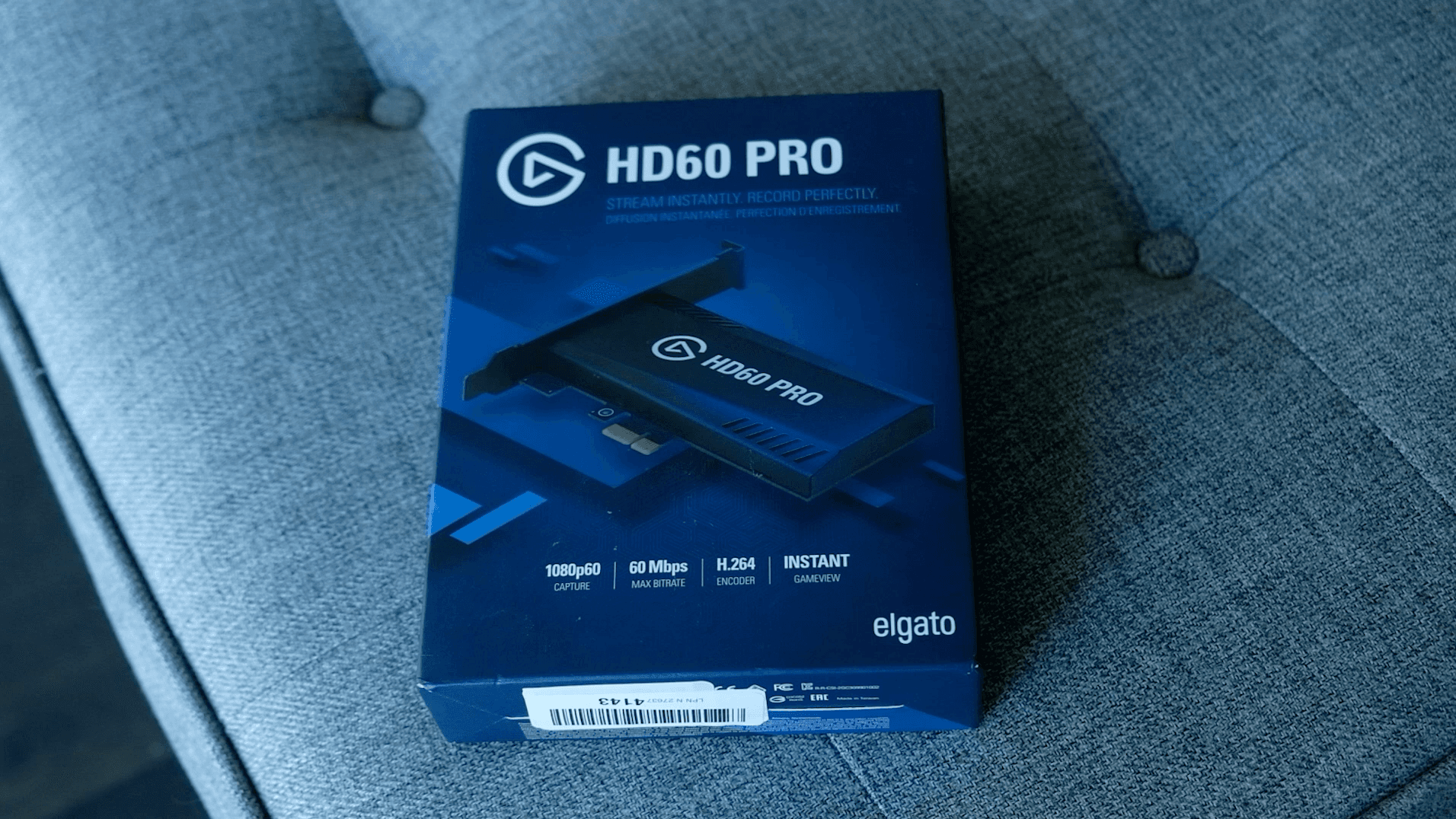

Elgato makes a few versions of these, USB and PCIe. I went with the PCIe card specifically to cut down on desk clutter. My desk is getting a little out of hand with all the streaming gear, and I didn't want yet another device sitting on it. With the PCIe card I just plug it into the computer and forget about it. If a USB box fits your setup better, you've got options.
HD60 PRO SPECS
- 1080p at 60fps
- Max bitrate of 60 Mbps
- H.264 encoder
- Instant Game View
That Instant Game View is the highlight for me. I used to run a splitter from my Xbox to my monitor, but now I can see everything instantly through the card with no delay as far as I can tell.
WHAT'S IN THE BOX
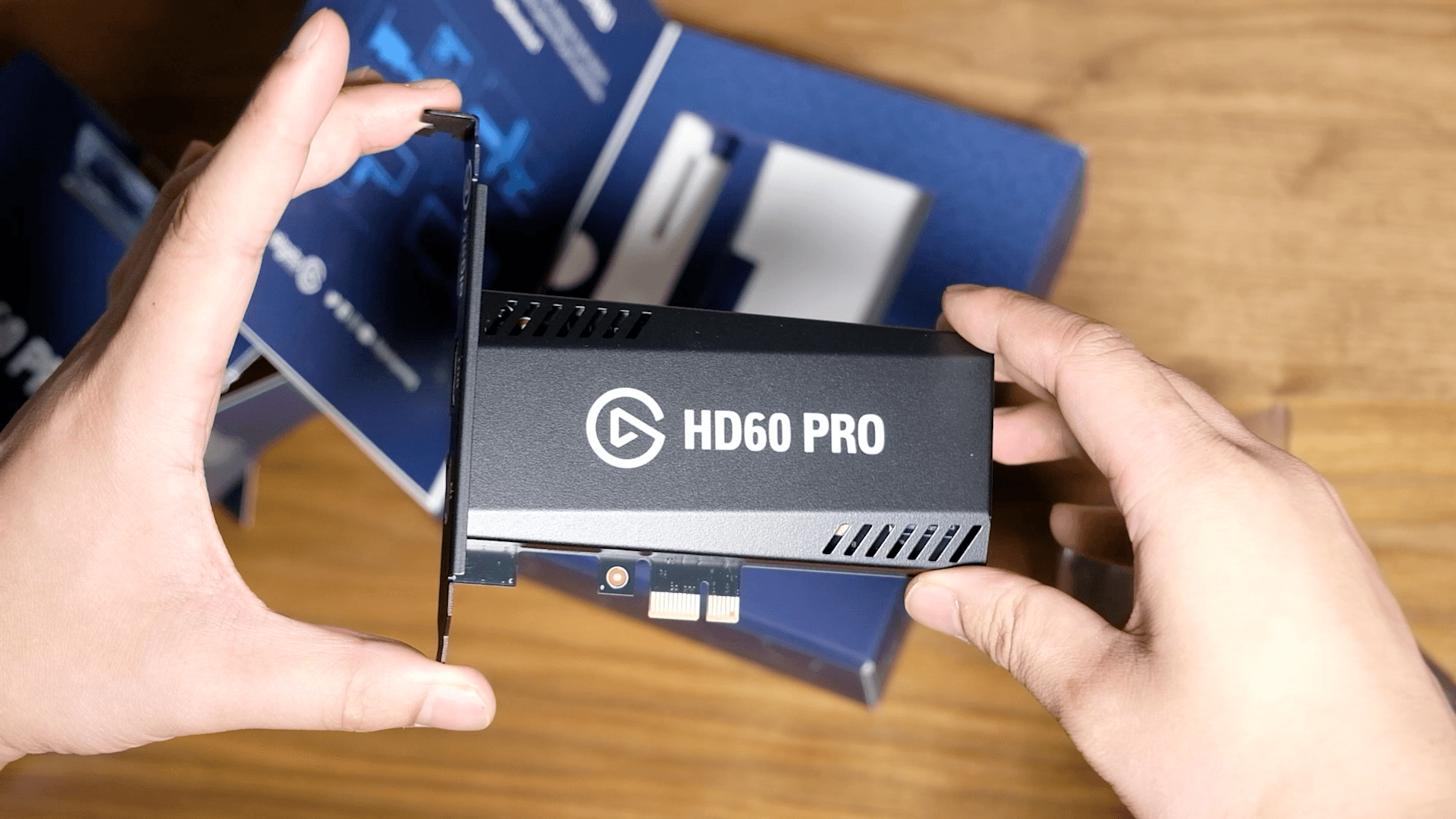
Inside you get the capture card itself, which is a lot smaller than I expected, both a high- and low-profile bracket so you can match your case, an HDMI cable, and some documentation.

INSTALLATION
The install is really straightforward:
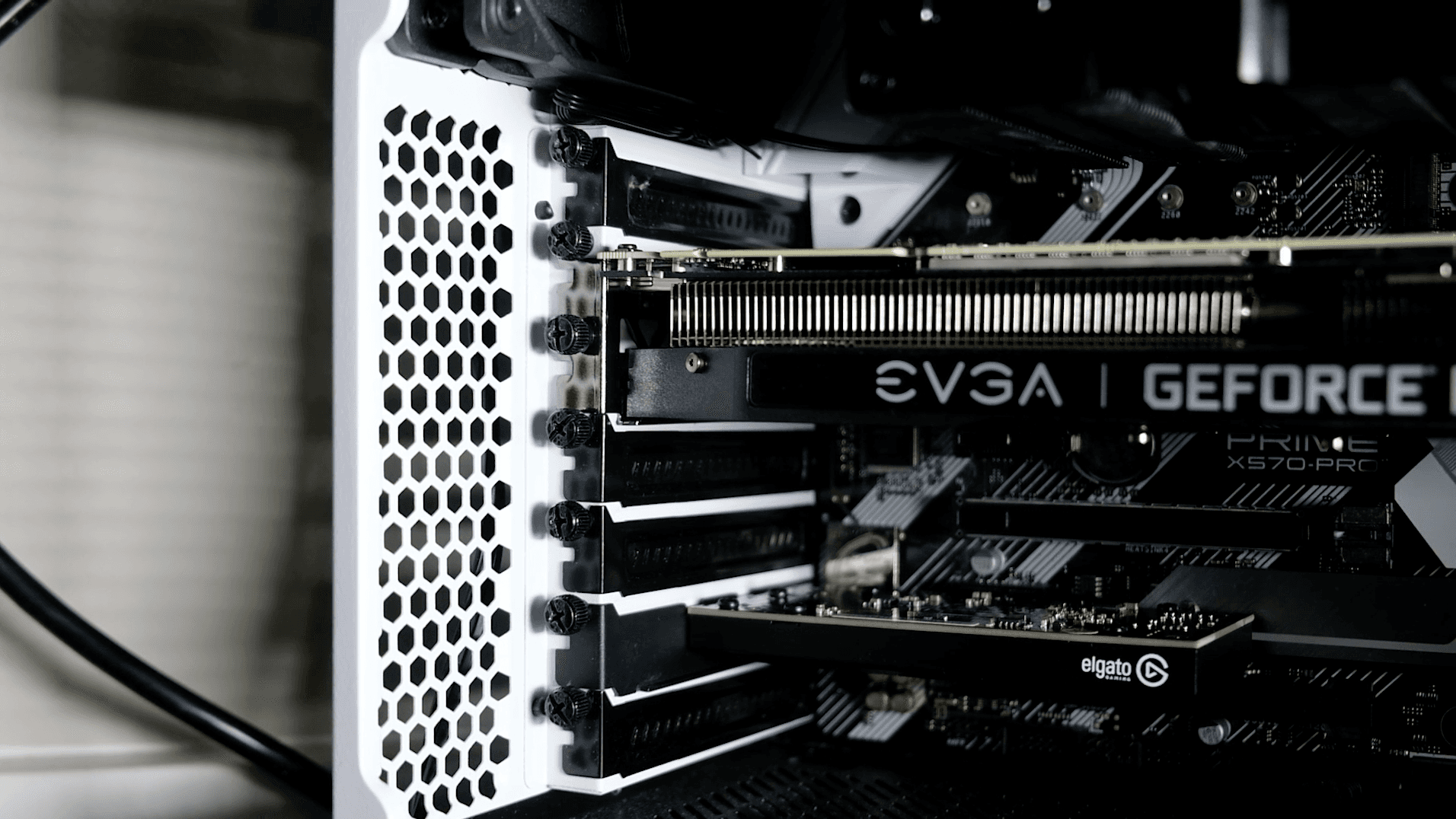
- Plug the card into an empty PCIe slot. Swap to the high- or low-profile bracket depending on your case.
- Connect HDMI in: take the cable from your console and plug it into the IN port.
- Connect HDMI out: take the cable to your TV or monitor and plug it into the OUT port.
That's all there is to it on the hardware side.

SETTING IT UP IN OBS
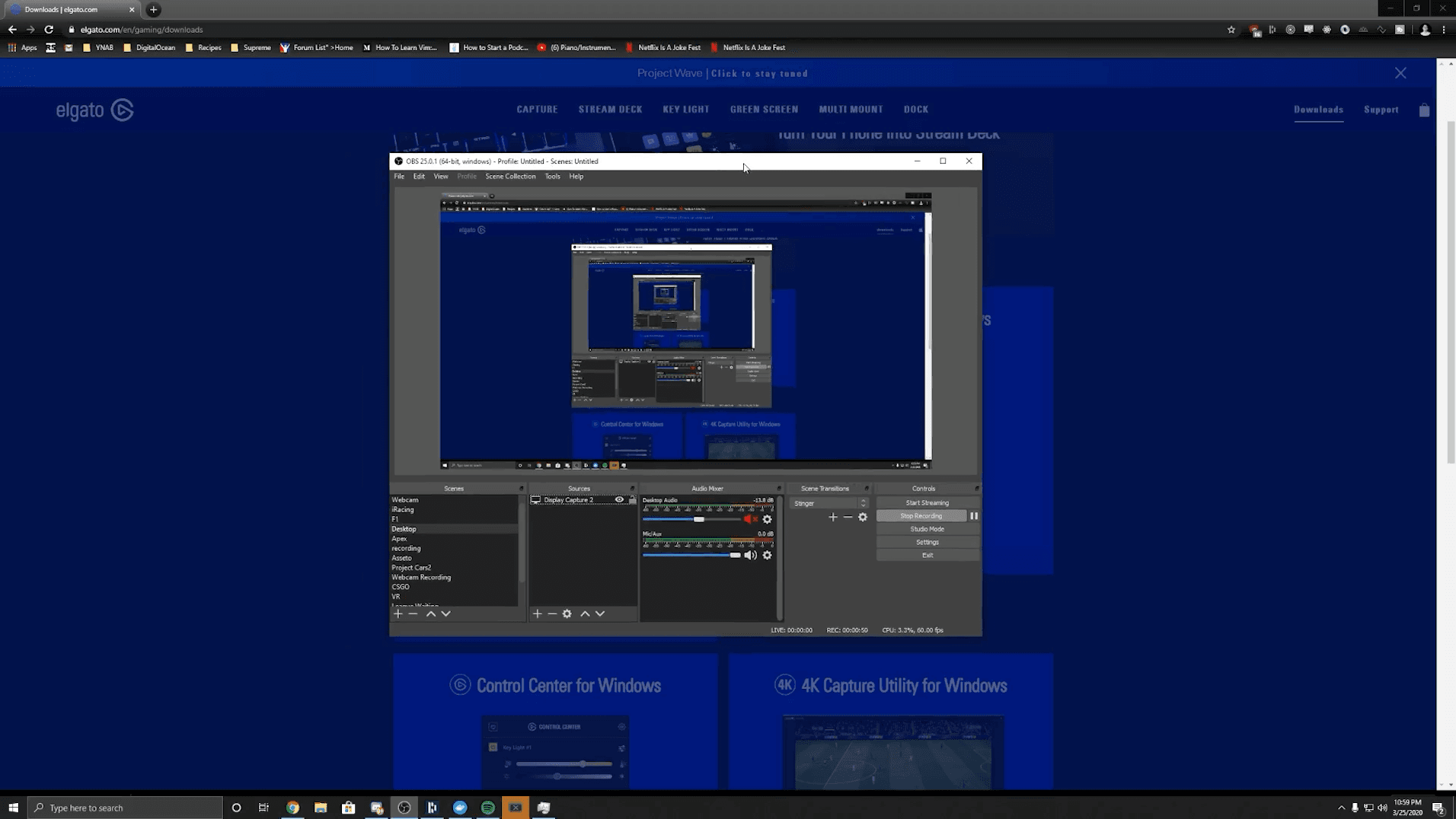
You can use the HD60 Pro with OBS without installing any extra software, which is exactly what I did. I'm already on OBS and didn't feel like adding Elgato's Game Capture app, though you can grab it from Elgato's website under Downloads if you want it.
In OBS, it's plug-and-play:
- Go to your Sources and add a Video Capture Device.
- Create a new one and name it. I just called mine "elgato."
- Choose the HD 60 Pro as the device and hit OK.
And that's it. Everything's good to go, and I can start streaming on Twitch.

FINAL THOUGHTS
The HD60 Pro is a clean, low-fuss way to capture console gameplay, and going PCIe keeps your desk tidy if you're already drowning in streaming gear. The Instant Game View alone makes it worth it over an old splitter setup, and getting it running in OBS takes about a minute.
Questions about the HD60 Pro or capturing console gameplay? Drop them in the comments or join the Discord.